If you see the Access Denied message “You currently do not have access to the room” when you log in to Lightico, you are connecting from an IP address that your company’s IP allow list doesn’t include. Your company’s Lightico admin can fix this by adding your IP address to the list.
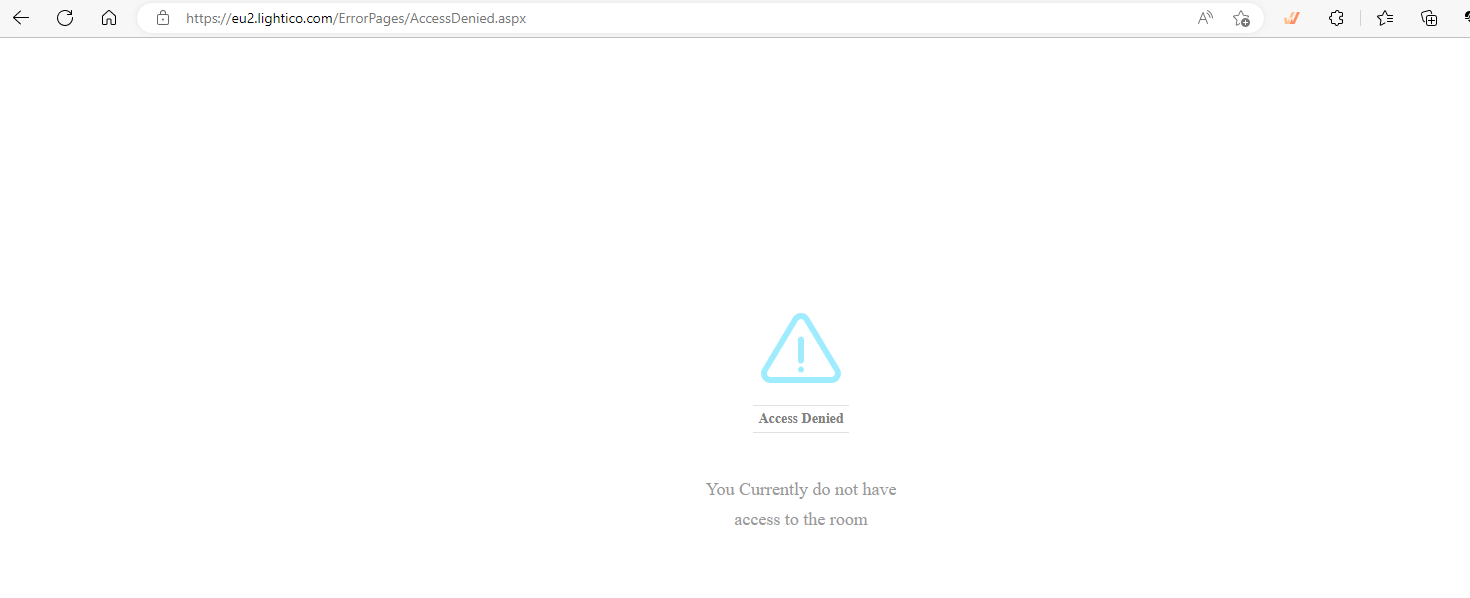
Access Denied: You currently do not have access to the room
Note: This article is for agents logging in to Lightico. If a customer sees Access Denied when opening a session link, see Access Denied to Lightico session.
Your IP address isn’t on your company’s IP allow list
Admins can limit access to Lightico to a list of approved IP addresses. When the IP allow list is turned on, Lightico denies access to anyone who logs in from an IP address that isn’t on the list.
If you’re an agent
Search for What is my IP in any search engine. Your IP address appears in the results.
Send this IP address to your company’s Lightico admin and ask them to add it to the IP allow list.
If you’re an admin
Go to Settings > System Settings > Security > IP Allow list.
Add the agent’s IP address in the configuration window.
User permissions: You need profile admin rights to change the IP allow list.
Still having trouble?
If the agent’s IP address is on the list and they still see the message, contact Lightico Support. Include the agent’s IP address and the approximate time of the login attempt.