As an agent, you can send a Workflow that includes one or more External Documents—documents that you upload at the time of the session. Unlike documents configured in advance by the business configurator, External Documents allow you to include the most up-to-date version and choose the exact file for each session.
When you add a Workflow that includes an External Document step, an upload dialog appears listing all required documents. For each document, the following identifying information is displayed:
Document name
Short description (optional) to help you understand what needs to be uploaded and locate the correct file
Once uploaded, documents are automatically placed in the correct position within the Workflow.
.png "image(41).png")
To upload an External Document to a Workflow:
Add the Workflow to the session.
If the document includes multiple participants, a Participant list dialog appears.
Enter contact information for each participant and click Next.
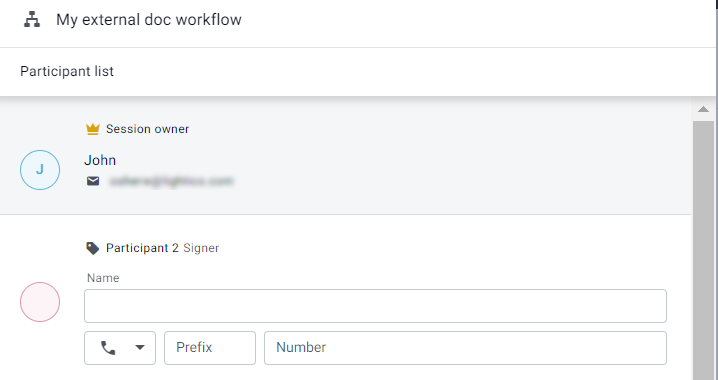
In the External Document pop-up, click Upload file.
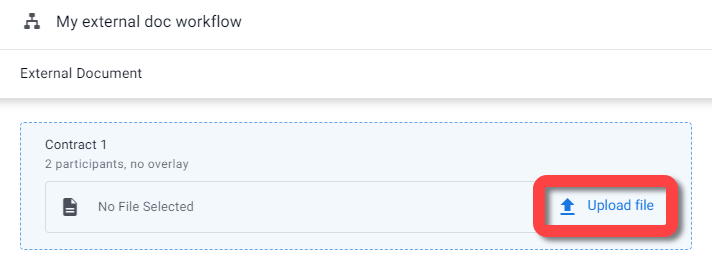
Select the file from your device.
The file preview opens in the editor preview, where you can define how participants interact with the document by adding fields:
At the top of the page, click the agent icon or one of the participant icons (A). This defines who is required to fill in the field. Fields are color-coded to match the participant icon.
Click the type of field in the right toolbar (B).
For more information about adding fields, see below.Click and drag fields in the desired locations on the document (C).
Click Done.
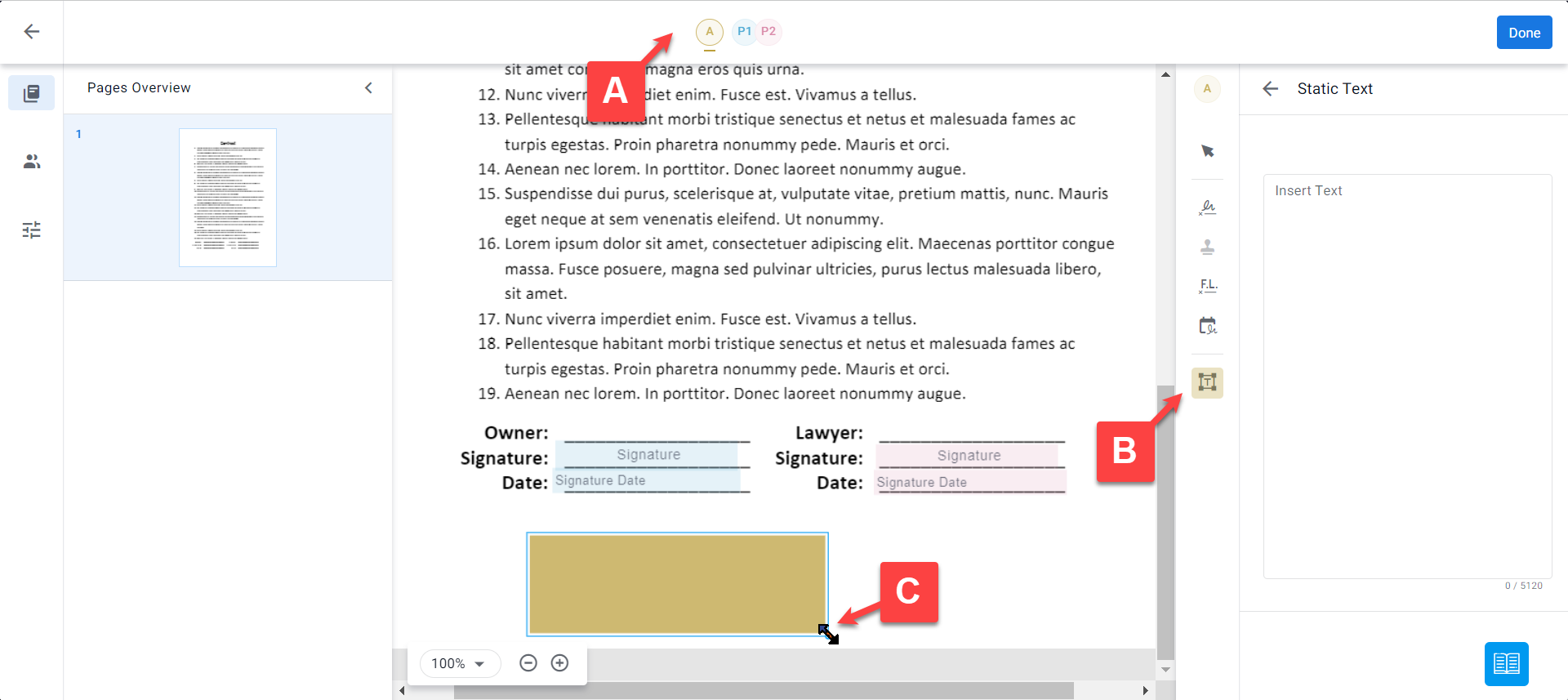
The document is added to the Workflow.
Optional documents
There may be documents in the Workflow that are not required for every customer. In that case, an Optional tag will appear next to that document in the list. You can skip that document in the Workflow simply by not uploading a file for that document.
.png)
Adding fields to the document
After uploading a document, the editor preview allows you to add fields that define how participants interact with the document.
Supported field types:
Signature, initials, signature date, corporate stamp — For each participant configured as a Signer (by the Business Configurator), at least one of these fields must be added to the document.
Free text — Select the Agent participant to insert additional text into the document.
Note:
Participants assigned Approver or Viewer roles are not required to sign. Signature-related field options are disabled for these roles.
Participants assigned the Viewer role can open and view the document, but are not required to take any action and do not affect Workflow progress. This is useful when additional stakeholders need visibility into the document without participating in signing or approval.
External document preview with customer information fields
When you upload an External Document, the preview may display customer information fields that cannot be edited.
These fields behave as follows:
Some fields are prepopulated with existing customer or session data
Other fields are completed later when the agent or customer fills out related forms in the Workflow
These fields are shown in the preview for reference only. No action is required in the editor.
The final document will automatically include all populated values as part of the completed Workflow.
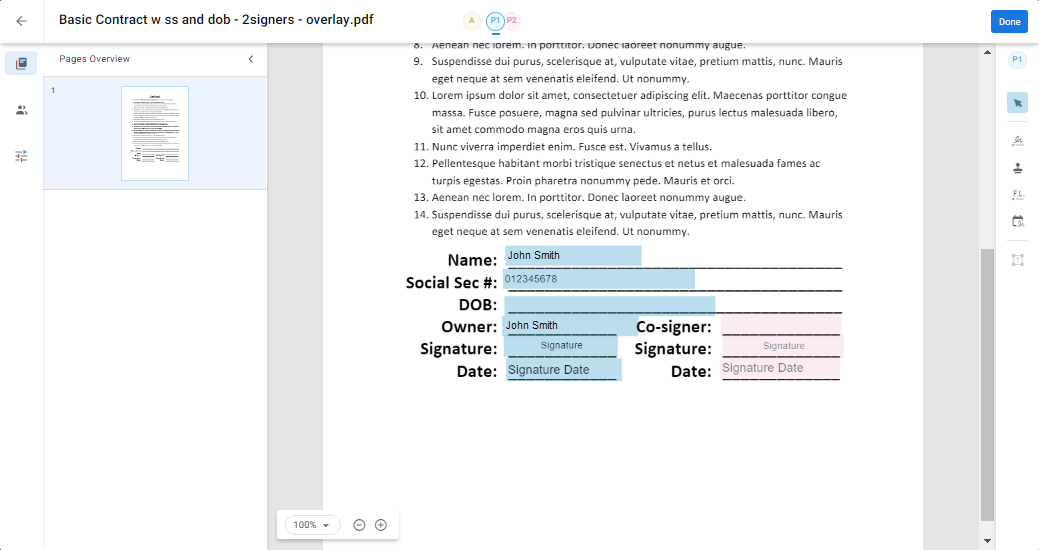
External Document Preview Showing Customer Information Fields