Conditions let you control what happens in a process based on the data in it. In Case Manager, you use them to decide when a task is available, visible, or editable, and when a case can move to another state. In Document Analyzer, you use them to decide when a document is required and to validate the data extracted from it.
This article explains how to build conditions in the condition builder used in these two areas.
Note
For conditions in Workflows and other Collaboration Room builders, see Setting conditions in Workflows.
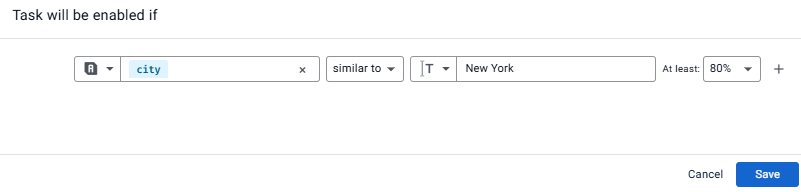
Condition dialog box for Case Manger
Set a condition
For the first field, select the field type.
In Case Manager, the choices are Attribute or system value (types of system values available are: User, Team, System value (general values), and Role). In Document Analyzer, only Attribute is available.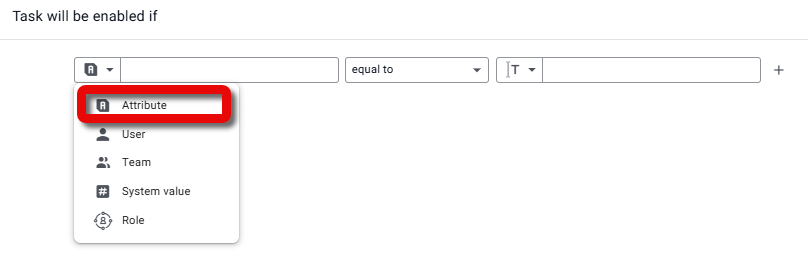
Click into the field and select a specific Attribute or system value.
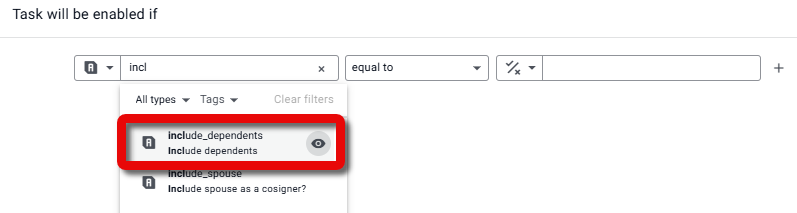
Select an operator.
The operators you see depend on the type of field.
For the last field, select a field type.
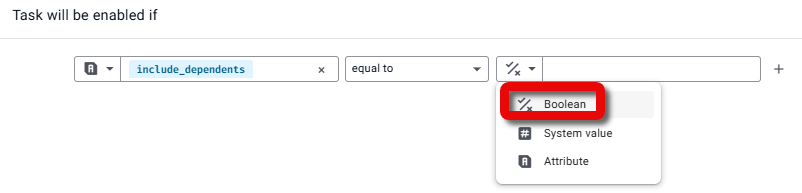
Enter or select the value to which to compare.
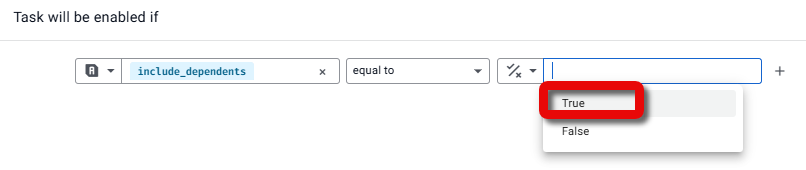
Click Save.
For example: include_dependents (Boolean Attribute) equal to true.
Combine multiple clauses
Click + next to a clause to add another one below it and click − to remove a clause.
Between clauses, use the And/Or selector on the left to choose how they combine: And (all must be true) or Or (at least one must be true).
To evaluate some clauses together, select the check boxes next to them and click Group selected clauses. The grouped clauses are indented, with a line on their left, and have their own And/Or selector.

Conditions on a date range
To check whether a date falls within a range of another date, use within.
Select a date Attribute.
In Case Manager, you can also select the system value Current Date, which is checked each time the condition is evaluated.Select within.
Click the range box and set the Amount, the Unit (days, weeks, months, or years), and the Direction (before or after).
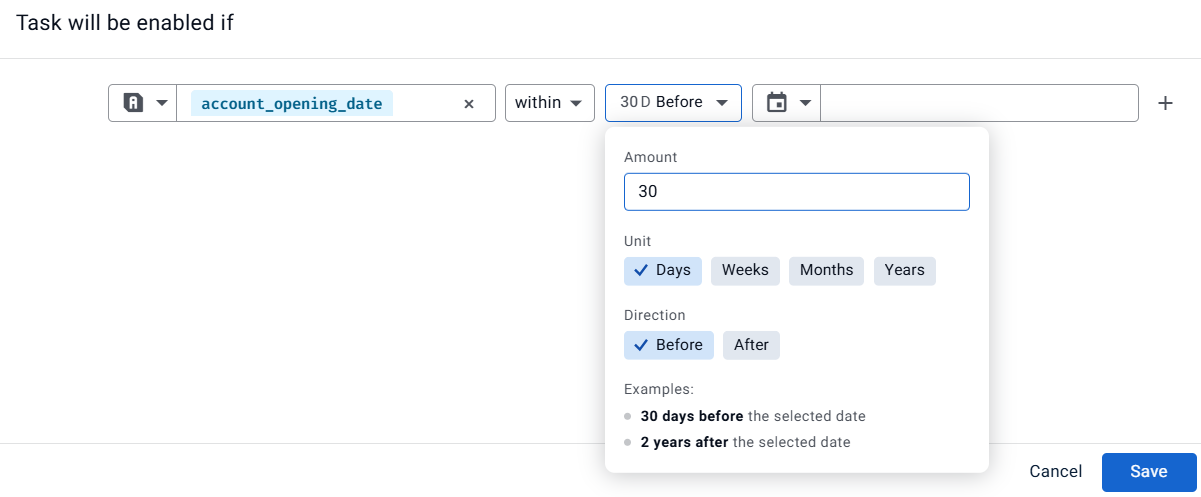
Next to the value box, select what to compare against: Date, System value, or Attribute. Then select the date.
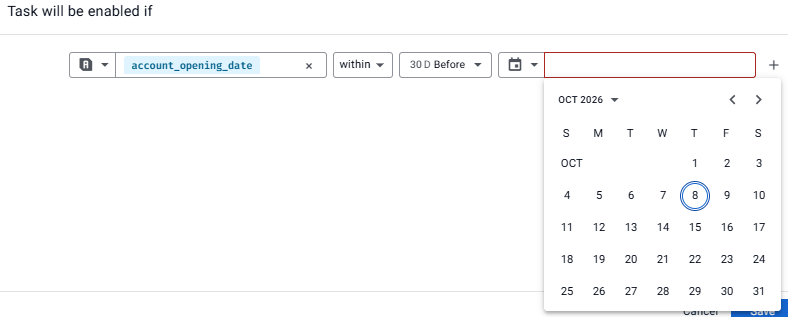
For example, Current Date within 30 days before ID expiry date is met when the ID expires within the next 30 days.
Conditions on approximate text
To match text approximately, use similar to.
Select a text Attribute.
Select similar to.
Enter the value to compare against.
Under At least, select the minimum similarity: 50%, 60%, 70%, 80%, 90%, or 95%.
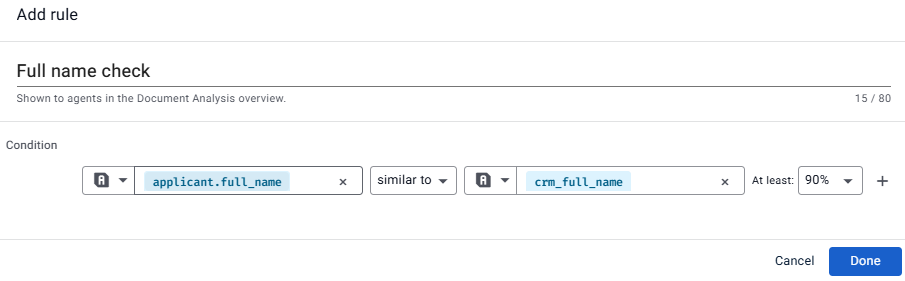
The condition is met when the two texts are at least that similar.
Examples of conditions
The following are examples of how conditions might be used.
In Case Manager
Prompt an early review: in a mortgage process, a Review ID task is visible when Current Date is within 30 days before ID expiry date.
Allow for spelling differences: in a lending process, the Verified transition is available only when Name on ID is similar to Account holder name, at least 90%.
In Document Analyzer
Require a document only when needed: require a tax return only when Employment status is equal to Self-employed.
Check that a document hasn't expired: a validation rule compares the document's expiry date with Current Date (UTC).