This article explains how to set up users who work with Case Manager, and how to assign the correct permissions based on their responsibilities.
For general instructions on creating users and assigning roles, see Managing users and permissions.
Case Manager user permissions
When creating or editing a role for Case Manager users, configure the following permissions based on the user’s scope of work.
Enable Case Manager access (required)
For all Case Manager users:
In Permissions, enable Case Manager.
This grants access to the Case Manager UI and core case-handling capabilities.
When Case Manager is enabled, additional Case Manager–specific permissions become available.
Notes permissions (optional)
Case notes can be added and edited by any user with Case Manager permissions. However, notes can also be locked, which disables further editing.
The ability to lock or unlock notes is controlled by a specific permission within the Case Manager permission section and can be removed based on your internal governance and review processes. For example, you may want case agents to work on cases and add notes, but not control whether a case remains open for further notes or comments.
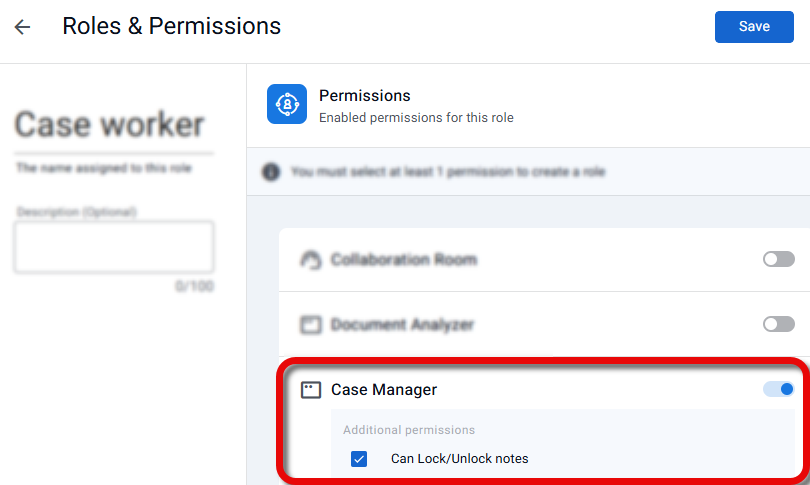
To enable a user role to lock and unlock case notes:
Under Case Manager, make sure the Can lock/unlock notes permission is selected.
Permissions for configuring case types and journeys
Users who are responsible for configuring case structures and flows (for example, Business Configurators or Admins) require additional permissions.
To enable configuration capabilities:
Enable Journey Configuration permissions.
This grants access to:
Case Type Builder
Workflow Builder
Form Builder
Attributes and data mapping
Other Business Configuration (BC) pages related to journey design
These permissions are not required for case agents and other users who only work with existing cases.
Summary
Enable Case Manager permissions for all Case Manager users.
Optionally enable lock/unlock notes based on user responsibilities.
Enable Journey Configuration permissions only for users who configure case types and journeys.