A rich text Attribute is a specialized Attribute type designed for capturing structured, formatted text from agents — and rendering that content in a Dynamic Document.
Unlike a standard text Attribute, which stores plain text and loses any formatting on output, a rich text Attribute preserves the structure the agent enters: paragraphs, bullet points, bold, italic, and underline are all retained when the value is referenced in a Dynamic Document. This makes it the right choice for content that needs to read as composed prose in a final HTML document — such as an adviser's recommendation, a case summary, or structured instructions.
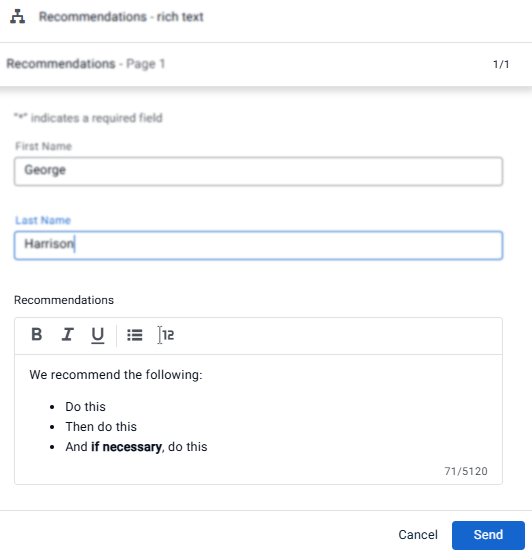
Agent Form with rich text Attribute input field
Where rich text Attributes can be used
Rich text Attributes are supported in:
Agent Forms — the primary use case; agents enter and format content during a Collaboration Room session or Case Manager case
Customer Forms — customers can also enter rich text if the form requires it
Dynamic Documents — the value renders with its formatting intact in the final HTML output
Note
Rich text Attributes are not supported in PDF Templates, external source mapping, or APIs.
Conditions - when a rich text Attribute is used in a Workflow or Dynamic Document condition, only the Is empty and Is not empty operators are available.
Create a rich text Attribute
In the Admin Center, go to Attributes.
Click Create new and select Rich Text.
Configure the following in the Create Attribute dialog:
Attribute name — unique system name; lowercase letters and underscores only
Attribute label — the label displayed in forms
Description — optional
Max characters — the maximum number of characters the field accepts (up to 5,120)
Click Save.
The Attribute is now available to add to agent and customer Forms and to reference in Dynamic Documents.
.png)
Q and A
Can I define a default value for a rich text Attribute in a Form?
Yes. In the Form builder properties pane, under Default value, select Value and enter and format the default value directly in the Form preview.