Before Document Analyzer can analyze a document, you’ll need to set it up as a Document Request with advanced processing. Advanced processing connects the Document Request to a processing model, which classifies the document and extracts data from it. You can then bind the extracted data to Attributes and use it in validation rules.
This article explains how to create a Document Request that is ready for analysis. After that, you add the document to a document analysis type. See Create a document analysis type.
Before you begin
A processing model that includes your document must be enabled for your profile. Processing models are set up for each customer, so contact your Customer Success representative.
Create the Document Request
On the Document Requests page, click New document.
The Create Document Request dialog opens.Enter a Document name and Document code (only lowercase letters, numbers, and underscores).
Select a Category.
The document code and category cannot be changed once this document has been saved.Turn on Advanced processing.
.png)
The Select document dialog opens.On the left, select the processing model. On the right, select the document that the model is trained for.
Click Save.
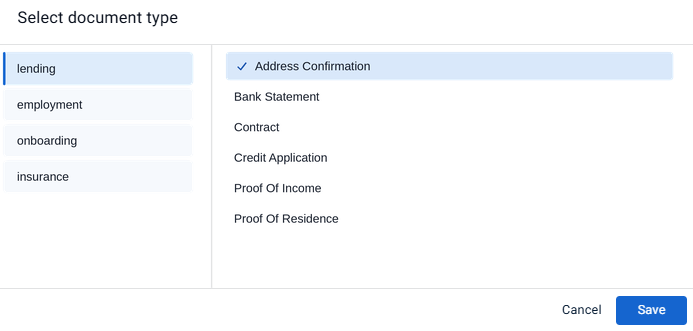
Advanced processing is now on, and the Document field shows the document you selected. To choose a different one, click Replace.
Note
After selecting a processing model and document, the Page limits field is unavailable. You don’t need to set it.
Bind extracted data to Attributes
The processing model defines which data it extracts from each document. You can’t add or remove those fields, but you can bind each one to an Attribute so the data can be used in validation rules.
In the Create Document Request dialog, turn on Data extraction.
The table lists the fields the model extracts from this document.Click Edit.
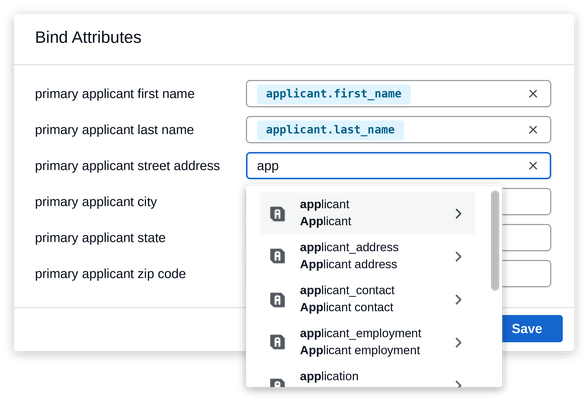
The Bind Attributes dialog opens.
The dialog enables selecting only Attributes that are a child of a complex Attribute.For each field, start typing the name of a complex Attribute, click the arrow next to it, and select the nested Attribute to bind to.
Click Save, and then click Save in the document dialog.
Use the document in an analysis type
The document now appears in your list of Document Requests. You can add it to any document analysis type that uses the same processing model. See Create a document analysis type.