A document analysis type defines the documents included in a Document Analyzer package. For example, a loan application package might include a driver’s license, recent pay stubs, and a bank statement. It also specifies whether each document is required, and the rules the data in them must meet.
This article explains how to create a document analysis type in the document analysis builder.
Before you begin
Create the documents you want to include in the type. See Set up a document for Document Analyzer.
Create the type
In the Admin Center, go to Document analysis builder.
The page lists your document analysis types by title and ID. You can search by title.Click New type.
The New document analysis type dialog opens.Enter a Name for the type.
Select the Model.
This is the processing model your documents were set up with..png)
Click Create.
The builder opens for the new type, with its name and model at the top..png)
Add documents
Click Add document.
The Add document dialog lists the documents you set up for this model.Select one or more documents.
To find a document, search by name or select a category on the left.Note
If two Document Requests use the same document from the processing model, such as Address confirmation, you can add only one of them to a document analysis type.
The documents you select appear on the right.
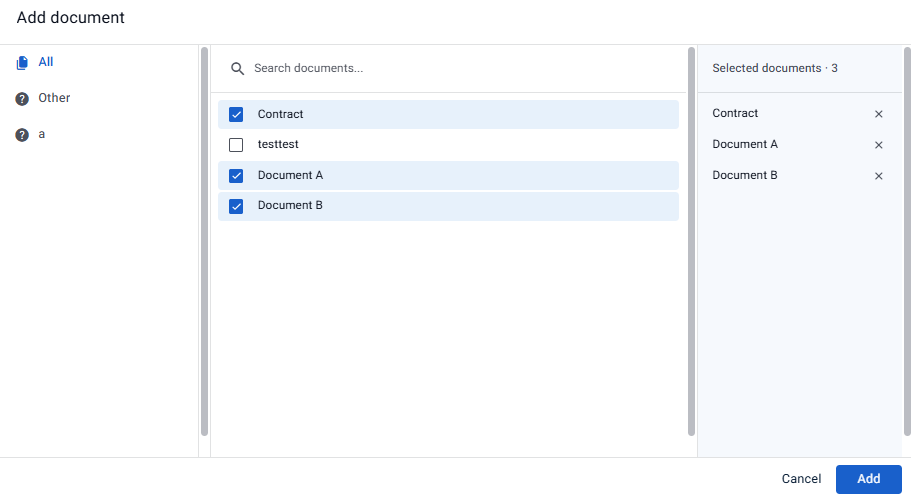
Click Add.
Each document appears in the Documents list with its extracted data, its number of rules, and its requirement. New documents are Mandatory by default. To remove a document from the type, click ×.
.png)
Choose what appears in the package header
The package header is what is displayed to the agent at the top of the main page for all instances of this analysis type. Use it to show Attributes that help agents identify the package at a glance, such as a name or an account number.
Click Package metadata.
Next to Attributes, click Edit.
The Select Attributes dialog opens.Search for and select up to 10 Attributes to show.
Click Done.
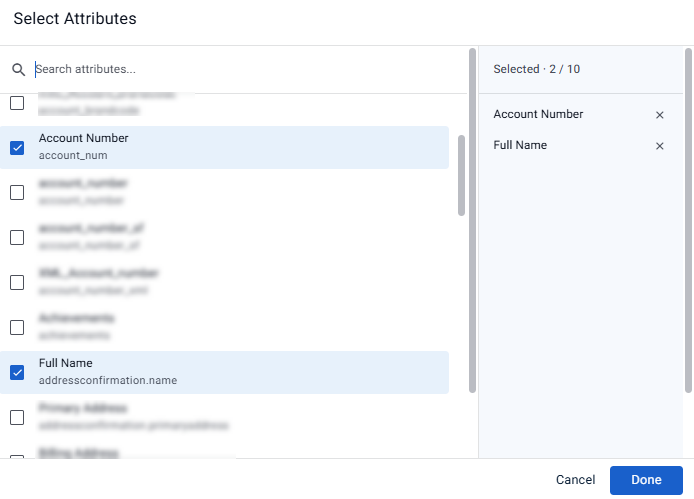
The selected Attributes appear in the list, and Header preview shows how the header will look.
To remove an Attribute, click ×.
.png)
Set whether each document is required
In the Documents list, click the document.
Under Requirement, select an option:
Mandatory: the applicant must provide this document.
Optional: the applicant may skip this document. If it is included, its validation rules still apply.
Conditional: the document is required only when a condition is met, otherwise it is optional.
.png)
For Conditional, click Edit condition.
The Document required when dialog opens.Build the condition and click Save.
See Setting conditions for cases and document analysis.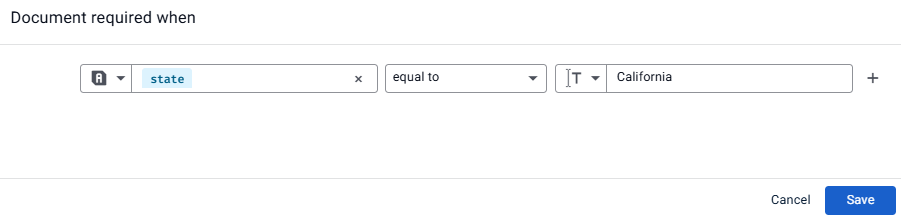
For example, require a document only when the applicant’s state Attribute is equal to a specific state.
View a document’s extracted data
Under Extracted data, click View all to see the Attributes extracted from the document. The list is read-only. You set the bindings when you create the Document Request (see Set up a document for Document Analyzer).
.png)
Add validation rules
Validation rules check whether the data extracted from a document meets your business requirements. Document Analyzer marks each rule Pass or Fail:
Pass: meets the rule requirements.
Fail: doesn’t meet the rule requirements.
A failed rule doesn’t stop a package from being submitted. If a decision is wrong, reviewers can switch a rule from Fail to Pass, or from Pass to Fail, and the final report lists any rules that weren’t met. For details, see Validate a document package.
To add a rule to a document:
In the Documents list, click the document.
Under Validation rules, click Add rule.
.png)
The Add rule dialog opens.Enter a rule description. The description is required, and reviewers see it in Document Analyzer.
Under Condition, select an Attribute, an operator, and the value to compare against. The value can be one you enter, another Attribute, or a system value such as Current Date (UTC). The rule passes when the extracted data meets the condition. See Setting conditions for cases and document analysis.
Click Done.
Done becomes available when both the description and the condition are complete..png)
The rule appears under Validation rules. Every rule you add runs on every package of this type. To check several things in one rule, add more clauses to the condition and combine them with And or Or.
Examples
Rule description | Condition |
|---|---|
Name on the document matches the applicant |
|
Statement is no more than 90 days old |
|
Monthly income meets the minimum |
|
In the first example, an extracted Attribute is compared with one from your system of record. In the second, a date is compared with today’s date. In the third, a number is compared with a minimum.
Save the type
Click Save at the top right of the builder. Changes to a saved type apply only to packages that start processing afterward.
To analyze a package with this type, pass its ID as documentAnalysisTypeId when you call the Create document analysis endpoint. You can find the ID in the ID column of the Document analysis builder list, or retrieve it with the Retrieve document analysis types endpoint.