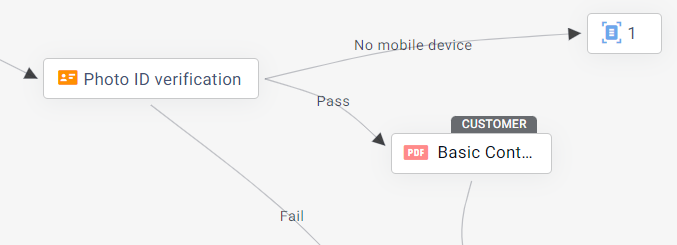
Verify a customer's identity using a photo ID — like a driver's license or passport — as a step in a Workflow.
Core validations
The photo ID verification step performs the following core validations:
Document type validation (classification) – Ensures that the uploaded document matches the expected type
Document authentication – Verifies that the document is authentic and not tampered with
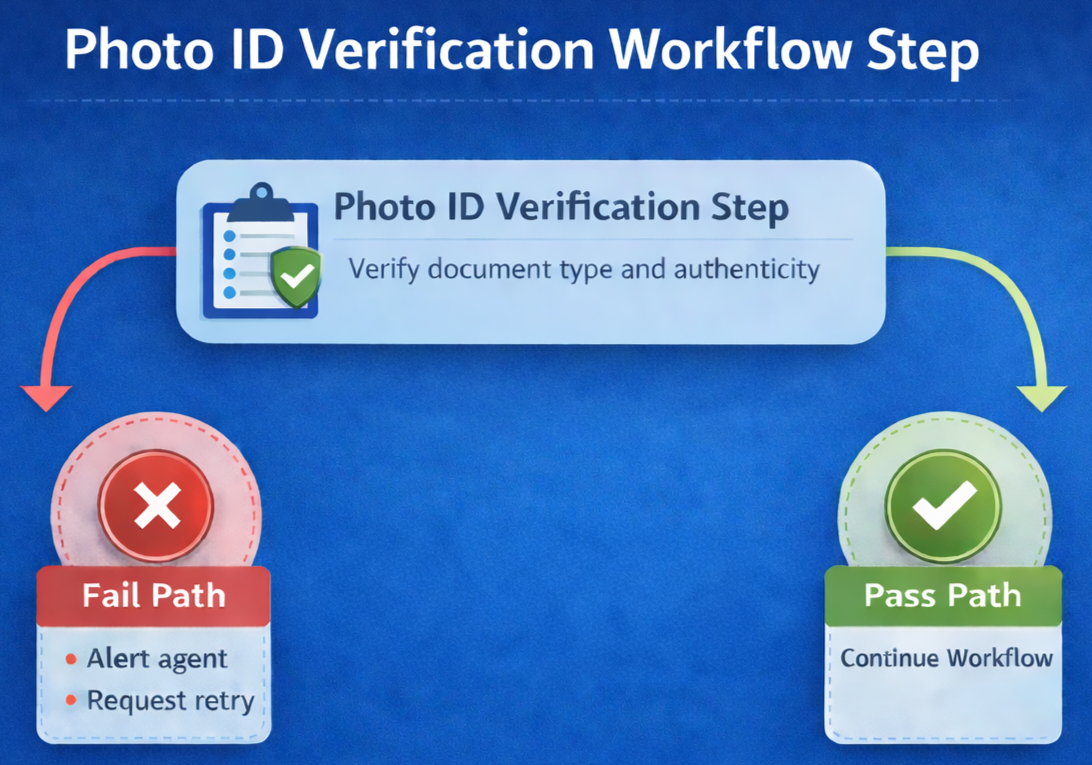
Based on these validations, the step determines whether the verification passes or fails, allowing the Workflow to continue along the appropriate path.
Retry handling
If a document doesn't meet the requirements, the customer can retry — but the message they see depends on why it failed:
Classification or quality issue – the customer gets specific feedback (for example, that the wrong document type was uploaded, or the image is too blurry)
Authentication issue – the customer sees a generic message, without specifics, since these failures can indicate fraud
Build flexible Workflows from verification results
Classification and authentication results are saved to Attributes, so you can branch the Workflow based on exactly why a verification failed — for example, sending customers who failed classification down a different path than those who failed authentication. Because everything here is configurable, not every Workflow will have both types of retries available; classification validation can be turned off, while authentication is always active.
Additional capabilities
Additional capabilities of the photo IDV step include: selfie comparison, consent tracking, and handling of expired documents. These and others can be configured as described below.
Why a verification fails
A photo ID verification step can send a customer down the Fail path for several reasons. For any given verification, the specific reason is available to developers in the failureReason parameter of the IDV completed event.
Example scenario: Route customers based on verification outcome
A business configurator at a digital bank is setting up an onboarding Workflow for new customers.
During onboarding, some customers may upload a document that does not match the requested type, or a document that fails authentication.
The configurator adds a Photo ID verification step and connects it to the next steps in the Workflow:
Pass path – Customers whose documents pass classification and authentication continue to the next step in the onboarding process
Fail path – Customers whose documents fail verification are routed to an alternative step, such as retry, additional verification, or manual review
To support this, the configurator enables:
Retry on incorrect document – Allows customers to correct their submission before the step fails
In the Workflow:
Successful verifications proceed automatically through the pass path
Failed verifications follow the defined fail path, ensuring that these cases are handled explicitly rather than stopping the flow
Optionally, verification outcomes—such as classification or authentication results—can be saved to Attributes and used later in the Workflow (for example, to trigger additional checks or reporting).
Add a photo IDV step to a Workflow
Before adding a photo ID verification step, see Create Document Requests to create and configure a photo ID Document Request.
Drag the Photo ID verification element from the left pane.
The Photo ID verification dialog box opens.Select one or more of the photo ID verification documents:
Selecting more than one document enables the customer to choose one of the options.
Verification is performed on only one of the documents.
Click Done.
.png)
Configure the Photo ID verification step
Select the Photo IDV step to reveal the properties panel on the right of the Workflow canvas.
.png)
Configure the following settings:
Step name
Edit the name of this step. This name appears in the collaboration session UI for the agent and customer.
A clear, descriptive name helps distinguish this step within the Workflow and during the session.
Edit list
Remove or add document types to the step.
This defines which document options are available to the customer (for example, allowing either a driver’s license or passport).
Classification validation
By default, this toggle is on, verifying that the uploaded document matches the type the customer was asked to provide.
On — if the uploaded document doesn't match the requested type, the step fails. Keep it on for flows that require a specific document type.
Off — any authentic document that clears quality and authentication checks continues down the Pass path, regardless of its type. Turn it off for flows where any valid document will do.
Regardless of this toggle's state, the document type identified during verification is stored in the #IDV_DOCUMENT_CLASS# system value. You can reference this system value in Workflow conditions to route customers based on the document type they actually uploaded — for example, to send a customer who uploaded a driver's license down a different path than one who uploaded a passport.
Save classification validation result to Attribute
Select a Boolean Attribute to store whether the uploaded document matched the expected type.
This can support reporting or enable logic based on incorrect document submissions later in the Workflow.
This setting is disabled when Classification validation is turned off.
Save authentication result to Attribute
Select a Boolean Attribute to store whether the document passed authentication.
This is typically used when verification outcomes need to influence later steps or be tracked.
Fail expired document
Turn on the toggle to fail the step when an expired document is detected.
Relevant for flows where document validity is required, such as regulated or higher-risk processes.
Compare with selfie
Turn on the toggle to require the customer to take a selfie and compare it with the photo ID.
Adds an additional identity check by confirming that the person matches the document.
At the end of each attempt, both the selfie and photo ID images are sent to connected hubs (for example, SFTP), and a Storage completed webhook event is triggered.
For more information, see Storage Solutions.
Save biometric consent result to Attribute
Select an Attribute to store whether the customer provided biometric consent (available only if Compare with selfie is enabled).
Useful for compliance tracking or handling cases where consent is declined.
Enable photo ID download
Turn on the toggle to allow agents to download the photo ID image.
Supports scenarios where agents need to review or retain the document outside the session.
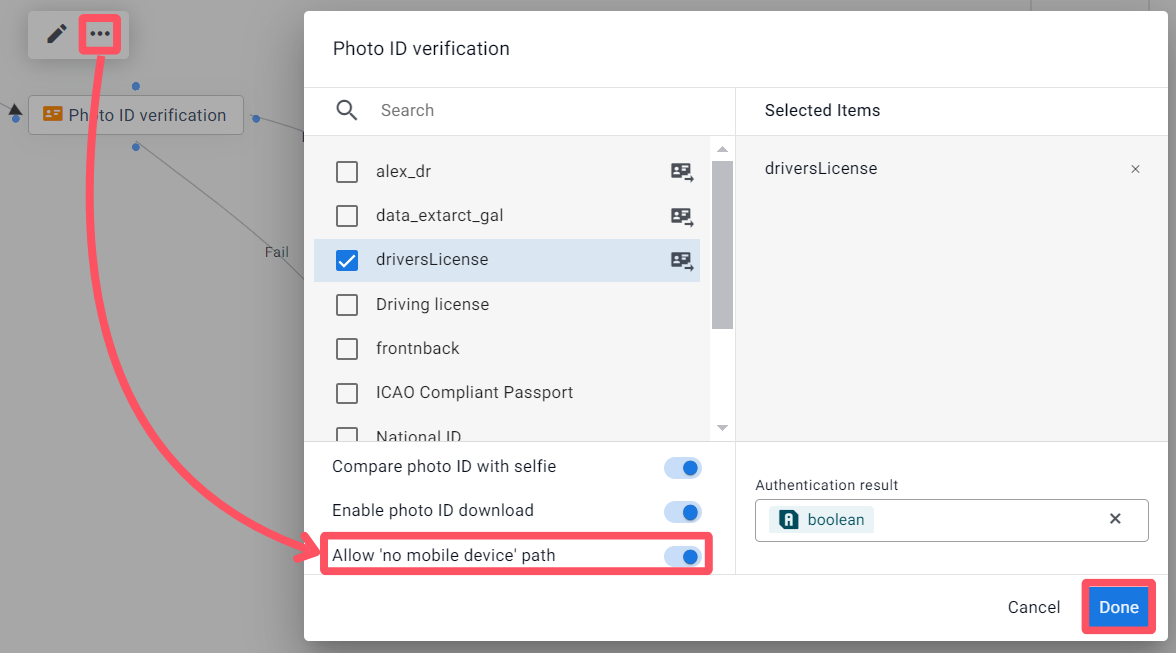
No mobile device path
Turn on the toggle to create an alternate path for customers without a mobile device (see Customers who join the session from a computer).
Ensures the flow can continue even when mobile-based capture is not available.
Save Instant Support result to Attribute
Select a Boolean Attribute to store whether Instant Support was used to verify the uploaded document.
Instant Support is a fallback method triggered when standard authentication cannot confidently validate a document. This Attribute is useful for reporting or for adding logic later in the Workflow based on how the document was processed.
To activate Instant Support, contact your Customer Success representative.
Save "Decline camera access" result to Attribute
When a customer denies camera access:
The Workflow automatically routes them down the configured Fail path
The customer sees guidance on how to enable camera access in their device settings
A Continue without authentication option is available, which also routes to the Fail path
Select a Boolean Attribute to store the result of this outcome. This is useful for reporting or for adding conditions later in the Workflow — for example, to route customers who declined to an alternative path or flag the session for follow-up.
Duplicate or delete the step
To duplicate or delete the photo IDV step, select it and use the toolbar to select the relevant action.
.png)
Note
To configure attempt settings for photo ID verification, see Customer authentication.
Connect the step
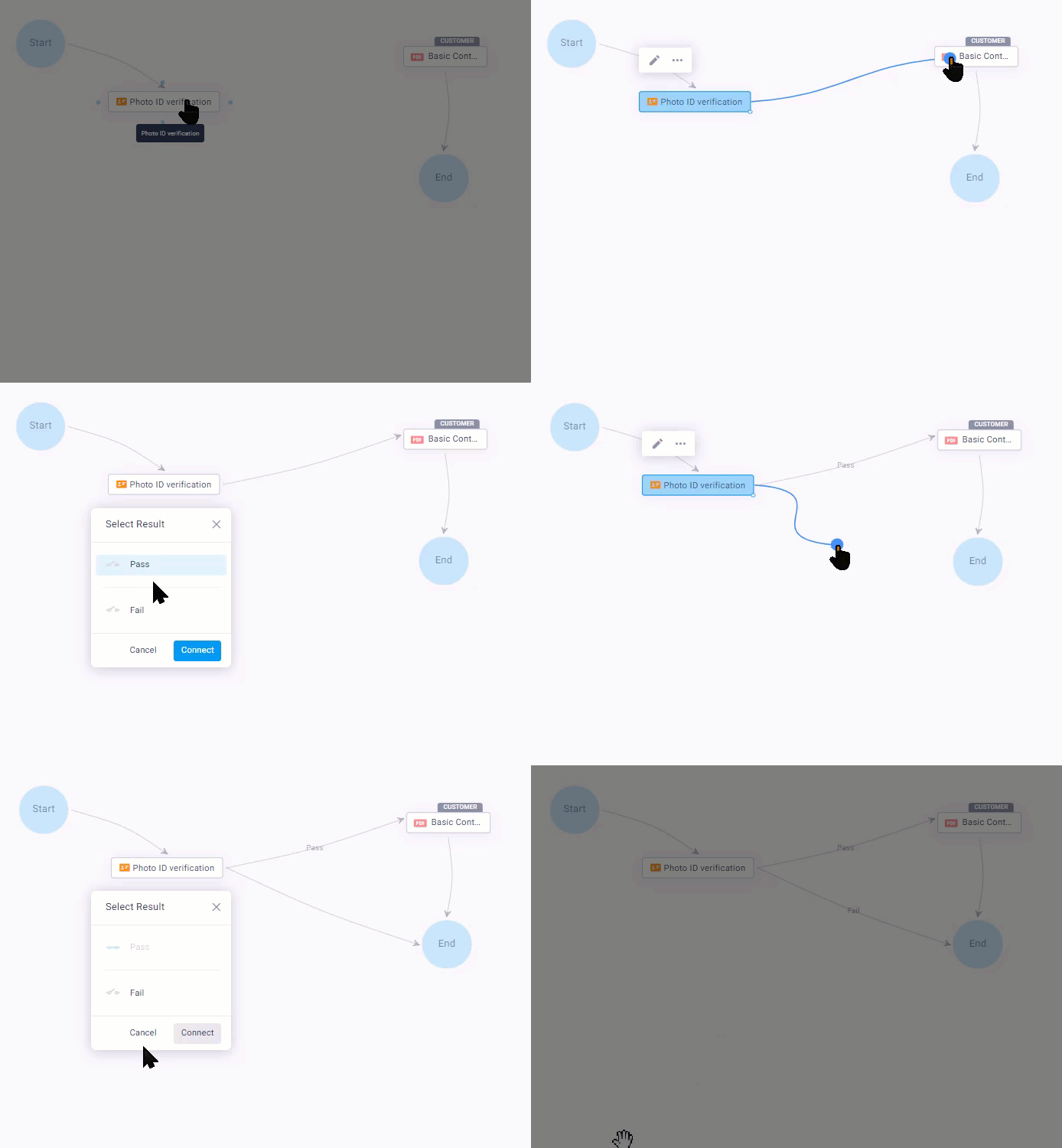
Connect the Photo ID element to one element for a Pass result and one for a Fail result.
Tip
If you would like the Workflow to advance to the same step regardless of the verification result, connect both the Pass and Fail connections to the same step.
Customers who join the session from a computer
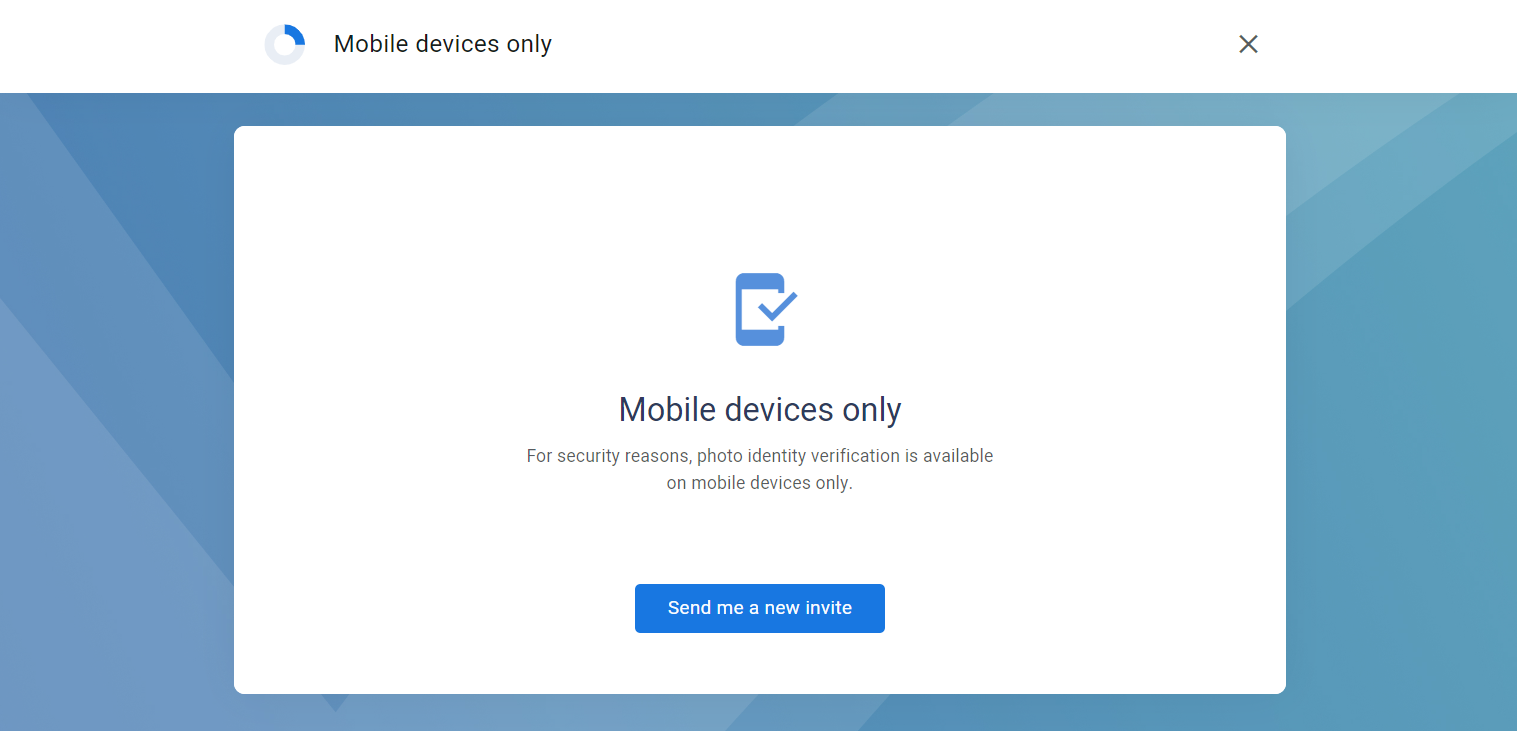
Photo IDV can be performed only from a mobile device. If the customer joins from a computer or laptop they cannot proceed with the Workflow.
The following are options to consider when designing a Workflow for customers who join the session from a computer:
Customer requests a new invitation
In a typical IDV step with only a pass or fail outcome, the customer encounters the message below if they entered the session from a computer. They can then click Send me a new invite to receive another invitation for joining the session from their mobile device.
Note:
“Send me a new invite” button will appear only if the session holds the customer’s email.
Including a “no mobile” option
If you regularly have customers who do not own or do not have access to a mobile device, you can add a “no mobile” option to the Photo IDV step.
To include a “no mobile” option in an IDV Workflow step:
After adding the IDV step to the Workflow select the IDV item and click the edit icon.
In the dialog box, select Allow ‘no mobile’ device path and click Done.
Connect the Photo ID verification item to the next step in your Workflow and, in the dialog box, select the No mobile device path.
Tip
You can make the next step a standard Document Request step and manually check the customer’s uploaded ID.
Click Connect.
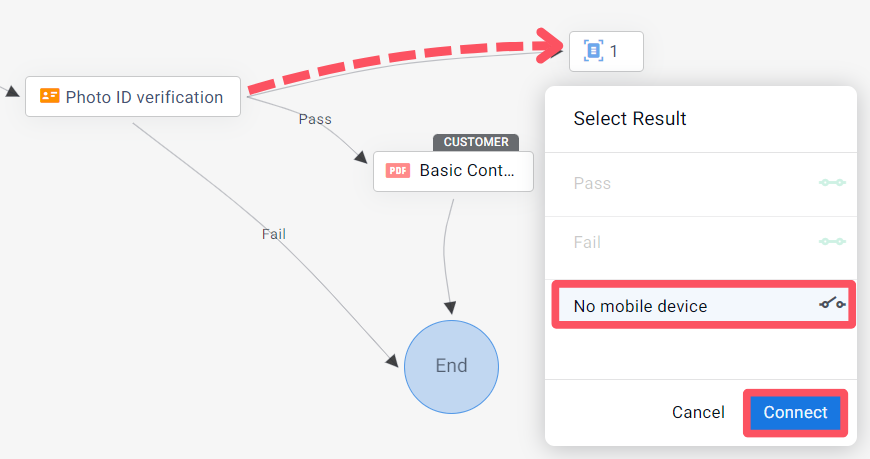
The “no mobile” option is included in your Workflow.