Importance of obtaining customer consent
Attention
The following explanation is provided for educational purposes only. Please consult your legal advisors to fully understand the specific requirements for obtaining customer consent based on your business and jurisdiction.
When conducting business in a digital environment—such as signing or approving documents—obtaining clear consent from customers is not only a best practice but also a legal and ethical necessity. Consent ensures that customers fully understand and agree to participate in the transaction under the terms outlined.
Benefits of obtaining clear customer consent
Legal compliance
Many regions and industries require explicit customer consent for digital transactions to comply with local and international laws, such as the eSign Act in the United States or GDPR in Europe. Without proper consent, the transaction could be deemed invalid or unenforceable.
Building trust
Asking for consent demonstrates transparency and professionalism. It reassures customers that their rights are respected and that the process is secure, fostering trust in your business practices.
Protecting your business
Consent provides a clear record that a customer has voluntarily agreed to the transaction. This protects your organization against potential disputes, misunderstandings, or claims of fraud.
Enhancing CX
By ensuring customers are informed and on board, the process becomes smoother and more collaborative. Customers are more likely to feel confident and engaged when they know their consent is valued.
How to obtain consent
Consent ensures that customers understand and willingly agree to the transaction or process they are engaging in.
Below are some key guidelines to follow when obtaining consent:
Be clear
Use simple, straightforward language to explain what the customer is consenting to.
Avoid technical jargon or overly complex terms that may confuse or overwhelm the customer.
State the purpose of the transaction or process in plain language, so the customer fully understands what is being requested.
Example: “By checking this box, you agree to sign the loan application digitally and submit it to XYZ Bank for processing.”
Be specific
Incorporate a clear acknowledgment step where the customer must actively confirm their consent. This could be:
A checkbox the customer selects.
A digital signature the customer provides.
A confirmation button or acknowledgment prompt that requires interaction.
Ensure that this step is unambiguous and directly tied to their consent. Passive consent (e.g., pre-checked boxes) should be avoided to ensure clarity and compliance.
Provide an opportunity to review
Before requesting consent, ensure that customers have ample opportunity to review all relevant information:
Terms and conditions of the transaction.
Any applicable disclaimers, policies, or important details.
Present the information in a way that is easy to navigate, such as a scrollable text box, a downloadable PDF, or a clickable link.
Give customers the ability to ask questions or seek clarification if something is unclear.
Consent in a Lightico session
Lightico enables you to create consent pages for a collaboration session which require a customer to read and approve conditions for entering the session and completing digital processes and documents.
The consent requirements are configured globally in system settings and as part of the documents and Workflows on which you collaborate with customers. This standardizes your process of obtaining consent. You can set a general consent page to appear at the beginning of a session or Workflow and you can also present a consent before individual documents.
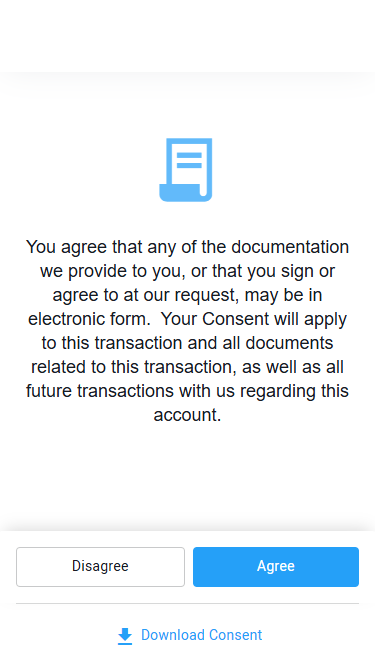 Session consent page | 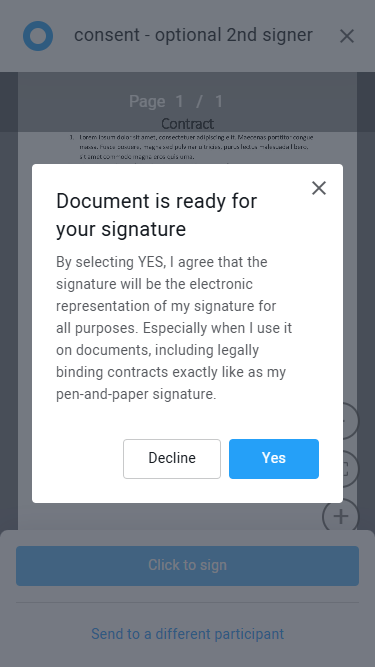 Document consent page |
Types of Lightico consent
In Lightico settings, consent requirements are split into 2 types of settings:
See below for an explanation of each.
Session consent
Consent before entering a collaboration session is a general agreement for all business that will take place in the session which could include signatures and approvals on multiple documents. This consent page is activated from system settings under Session > Preferences. For more information, see Configure customer consent - Session consent.
Signature and approval consent
Signature and approval consent behavior can be configured at the system, document, and Workflow levels.
Here’s how it works:
Customize the consent text in system settings
You can define the exact consent language shown to customers when they sign or approve documents. There are two separate texts—one for signatures and one for approvals. Customize the text in system setting under Session > Preferences. For more information, see Configure customer consent - Signature and approval consent.
Note
While you can technically activate consent from this page, this setting is usually overridden by document-level or Workflow-level settings. We recommend using system settings primarily to edit the wording of the consent messages.
Document-level consent settings
Consent behavior also depends on the type of document used:
PDF Templates
In the PDF Template builder, you can turn consent on or off for each template. When consent is enabled, the dialog shown to the customer is based on their assigned role:Signer → sees the signature consent text
Approver → sees the approval consent text
For more information, see Configure PDF Template settings.
Dynamic Documents (HTML)
On the document level, signature consent dialog is always enabled for a Dynamic Document.
Workflow-level consent control
The most important setting is found in the Workflow editor, where you can choose how and when consent dialogs are shown during a session. You can select from three options:
No consent shown
No consent dialogs will be shown—regardless of document settings.Consent follows each document’s setting
Consent is shown only if it’s enabled on the document itself:PDF Templates will show or skip consent based on their individual toggle
Dynamic Documents will always show consent
Single consent dialog at the start of the Workflow
The customer sees a single signature consent dialog at the beginning of the Workflow. After that, no individual documents—regardless of their settings—will show additional consent prompts.
Summary
Use system settings to write the consent text.
Use PDF Templates settings to configure if consent is required for each document.
Use Workflow settings to control whether consent is shown once, for each document, or not at all.
This layered approach gives you full flexibility over how customer consent is collected across different types of digital documents and sessions.
Q&A
How do I require consent for an External Document?
Create a PDF Template with consent required (see Configure PDF Template settings) and format the PDF Template as an overlay. Add the overlay to the External Document step in a Workflow. See Add external documents in a workflow - Add an Overlay Template to the External Document step.
How do I require consent for a Dynamic Document?
Consent is always enabled for signing Dynamic Documents, unless configured otherwise in the Workflow settings.